
Create a News Feed
A News Feed delivers a stream of timely, relevant content to Members on your website or within your mobile app.
To create a News Feed:
-
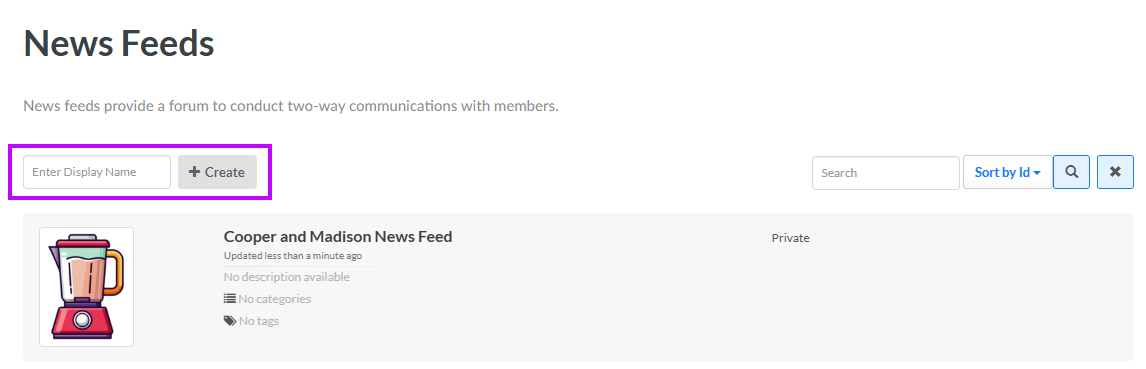
Select Communities from the top navigation bar, then select News Feed from the side navigation menu. The News Feeds screen is displayed.
-
In the Display Name field, enter the name of the new News Feed.
-
Click Create. The Edit News Feed pop-up window is displayed.
-
The Label field is populated with the value you entered above; optionally edit this value.
-
The Internal Name is automatically populated based on the Display Name value. This field is not editable by default. To edit the Internal Name, check Edit Internal Name. A confirmation dialog box is displayed; click Ok. Edit the Internal Name value.
-
Optionally, in the Description field, enter a description of this item.
-
Optionally, to assign a thumbnail image to this item, click Choose File. Browse to and select the desired image file, then click Open.
-
Optionally, to make this News Feed visible to non-Members, check Public.
-
The Auto Generate Feed feature is relevant only if you checked Public above. Check Auto Generate Feed to have the system automatically add new posts to the Public News Feed.
-
The Public Feed Count feature is relevant only if you checked Public above. This feature can be used to limit the number of posts visible at a time for Public News Feeds. This value can optionally be controlled by a Program Setting, or you can override the Program Setting and enter a value specifically for this News Feed. To defer to the Program Setting, leave this field blank. To expose all posts, enter "0" in this field.
Note: The Program Setting that controls this value is called Public List Item Count. The value currently defined for this Program Setting is displayed in the help text beneath the field. See Program Setting Category - General for more information.
-
Tags are used to help organize objects within the platform. News Feeds can be searched by Tag from the News Feeds screen. To reuse an existing Tag, begin typing all or part of the Tag name, and select it. You can also type in a new Tag value.
-
News Feed Categories are used to organize News Feeds, often for controlling what News Feeds get displayed on your website or app. From this drop-down menu, optionally select one or more News Feed Categories to assign to this News Feed. For more information, see Getting Started with News Feed Categories.
-
Click Save.
